How Cursor + Grok Finally Made Coding Feel Like Flow Instead of Fight
I’ve been writing code for more years than I care to admit. Somewhere along the way the joy got buried under context-switching hell: jump to terminal, paste the same prompt for the third time, scroll through walls of logs, copy-paste diffs back into the editor, then pray the model still remembered what we were doing five minutes ago. Cursor fixed a big chunk of that. Adding Grok on top of it fixed the rest. And because I kept wanting one more little thing, I ended up building a couple of tools that make the whole stack even smoother.
This isn’t a “Grok is the best model ever” post. It’s just what actually works for me day to day in mid-2026.
Cursor already did half the heavy lifting
Cursor is still the best AI-native editor I’ve used. The codebase indexing, the Composer multi-file edits, the way it keeps the conversation glued to the actual files you’re touching — that alone cut my “wait, which file was I in?” moments dramatically.
When Grok 4.5 landed natively inside Cursor (trained jointly with them on real developer interaction data), things got noticeably better. The model already understands the kind of messy, real-world coding sessions we actually have. It doesn’t hallucinate as many phantom APIs, it respects project conventions more often, and the agentic tool use feels less brittle. I still use Max Mode when the task is big; the extra context window is worth it.
But Cursor’s own agent and the Grok Build CLI are different animals. Sometimes I want the full Grok Build experience — the plan mode, the sub-agents, the persistent sessions, the way it handles permissions and diffs — without leaving the editor or dropping into a pure terminal.
That’s where the community Grok Build extension for Cursor/VS Code comes in. It wraps the official Grok Build CLI (via ACP) and gives you a proper sidebar chat with live tool cards, diffs, and session history right inside Cursor. Perfect.
The part I got tired of: living in the terminal
Even with the extension, a lot of the real power of Grok Build still lives in the CLI. Persistent workspaces, resumable sessions, custom sub-agents, browser and computer-use tools, document skills… all great, but the terminal UI gets old fast when you’re bouncing between three projects and want to glance at a previous plan or attach a spreadsheet.
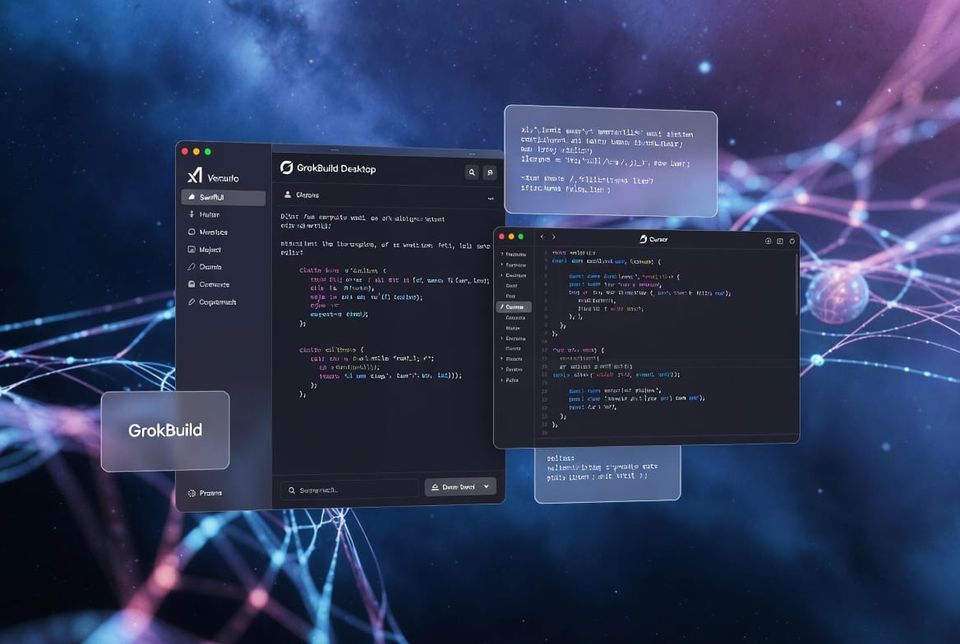
So I built GrokBuild Desktop — a native SwiftUI macOS app that is basically the Grok Build CLI with a proper home.
You can find it here:
https://github.com/rimusz/grok-build-desktop
It launches a real grok agent stdio process per project, streams everything into a clean chat UI, keeps sessions resumable across restarts, shows live tool activity and permission prompts, and gives you a sidebar of pinned projects. You can open the same folder in Cursor, VS Code, Finder, or Terminal with one click. You can attach files, run document/spreadsheet skills, drive a browser, or even do native macOS computer use — all without ever typing a terminal command if you don’t want to.
The app is fully standalone. When I just need to think through a design, clean up some docs, or do a quick coding task without spinning up the full IDE, I open GrokBuild Desktop and stay there. It’s become my default “I just want to talk to Grok about this folder” surface.
Because it sits on top of the same CLI, any custom OpenAI-compatible models or providers you configure in ~/.grok/config.toml are available inside the desktop app. That same config is what the Grok Build extension in Cursor sees. So if you point the CLI at extra models (or local ones), both the desktop app and the Cursor extension can use them. One place to manage models, two nice UIs that consume them.
When you want the Codex harness with Grok (or anything else)
Some days I still reach for Codex — the harness, the way it structures agent runs, the Desktop app. The problem was always the model lock-in.
That’s why I made Codex Gateway:
https://github.com/rimusz/codex-gateway
It’s a tiny macOS menu-bar app that runs a local OpenAI-compatible gateway. Codex Desktop and the Codex CLI both talk to it. You can keep the official GPT models for the things they’re good at, and route everything else to Grok (via API key or the same OAuth the Grok CLI already uses), DeepSeek, OpenRouter, Ollama, whatever. The gateway writes a shared model catalog so both Desktop and CLI see the same list. Restart Codex once after adding models and you’re done.
I use it when I specifically want the Codex agent loop but want Grok’s coding style (or a cheaper/faster model) for the bulk of the work. It’s the missing adapter.
What the daily loop actually looks like now
Most mornings I open Cursor, have the Grok Build extension in the sidebar, and just start talking. For bigger or more exploratory sessions I switch to GrokBuild Desktop so I can keep multiple projects pinned and resume yesterday’s conversation without hunting through terminal history. When I need Codex’s particular workflow I flip the gateway on and stay inside Codex Desktop with Grok models available.
The net effect is simple: I spend almost no time fighting the tools. The model stays in context longer, the diffs are easier to review, and the “where was I?” tax has dropped hard. Coding feels closer to pair-programming with someone who already read the whole repo and doesn’t get tired.
None of this is magic. Cursor + native Grok already gets you most of the way. The desktop app and the gateway are just the last 20 % of friction I personally kept hitting, so I removed it.
If you’re already in the Cursor + Grok world, give the desktop app a spin when you next want a terminal-free session. If you live in Codex a lot, the gateway is five minutes to set up and suddenly you have real choice of models. Both are open source, both stay out of your way once they’re running.
That’s the setup that finally made the tools feel like they work for me instead of the other way around.